On a family PC, a shared office machine, or a computer your children use, you often need to keep others from changing system settings—turning off Windows Update, editing privacy options, uninstalling apps, or opening advanced Control Panel tools. Windows Group Policy can cover some of this, but the entries are buried and awkward for everyday users.
Settings Security in Windows Manager controls which Windows Settings pages and Control Panel applets users can see. Hide pages you do not want exposed, or allow only a short list. On the Control Panel tab, hide individual items or disable the entire Control Panel. Changes are written to registry policy and take effect as soon as you apply them.
The rest of this article walks through when to use the tool, what the two tabs do, and how to handle common tasks.
1. What problems does Settings Security solve?
In day-to-day use, it mainly helps with the following:
- Fewer mistakes and unwanted changes. Hiding pages such as Apps & features, Accounts, or Windows Update makes it harder for others to uninstall software, change sign-in options, or disable updates.
- Shared PCs with fewer entry points. Only the settings pages you need stay visible—more reliable than asking people not to touch certain areas.
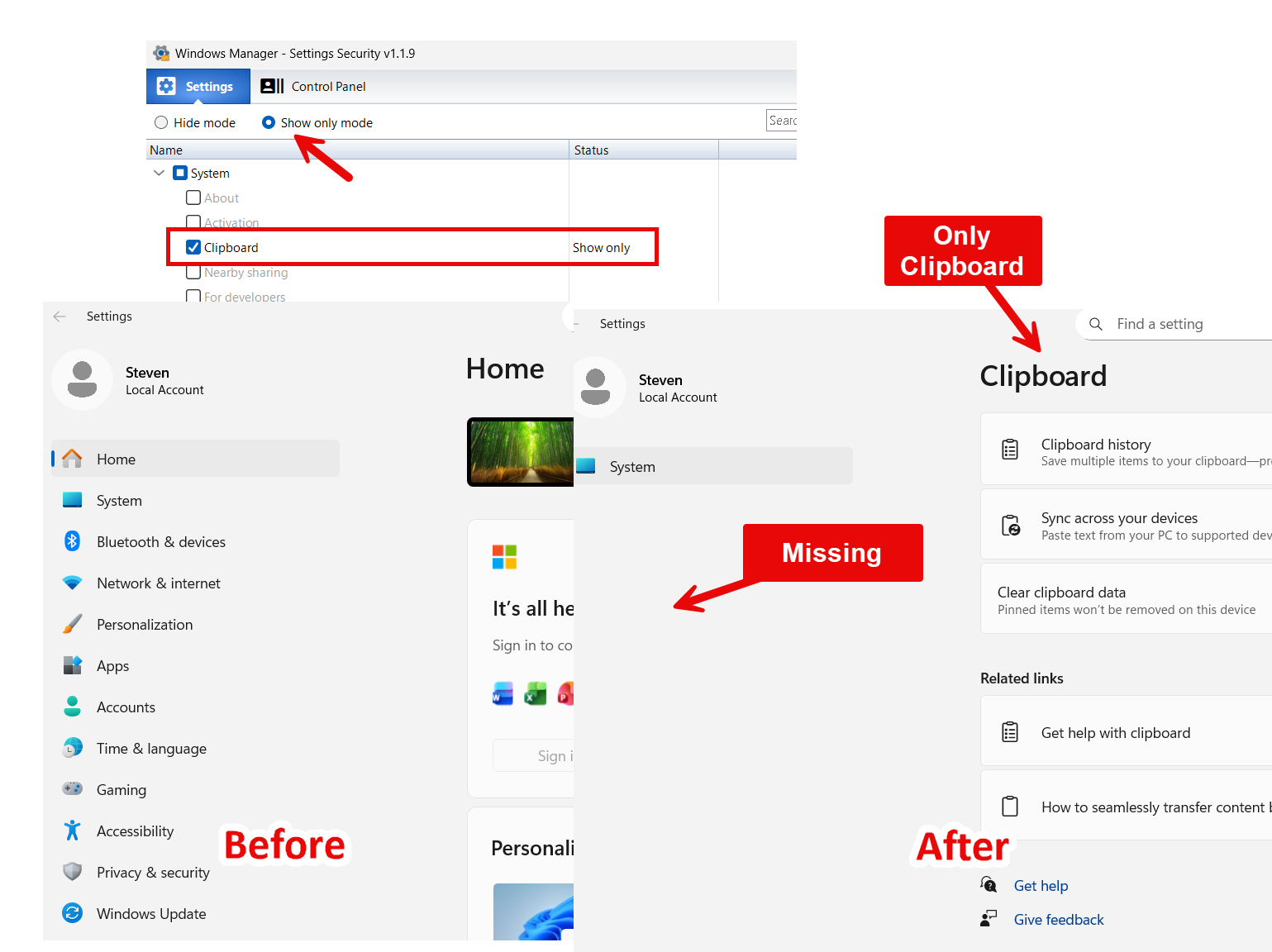
- A simpler Settings app. In show-only mode, users see only the pages an administrator allows when they open Windows Settings.
- Control Panel hardening. Hide classic items such as Programs and Features or User Accounts, or check Disable entire Control Panel to block access completely.
- No manual registry work. The tool lists supported settings URIs and Control Panel CLSIDs. Check items, apply policy in one click, and use Restore when you want defaults back.
Tip: Try hiding a few pages on a test machine or your own account first. Confirm the result matches what you expect before applying the same rules on a family or shared PC.
2. How to open Settings Security
In the Windows Manager main window, go to:
Security → Settings Security
This opens the Settings Security window in its own frame. If you have not installed Windows Manager yet, get the trial from the download page.
3. Main window: two tabs
The window has two tabs at the top:
- Settings: Manage pages inside the Windows 10 / Windows 11 Settings app—System, Devices, Network, Personalization, Apps, Accounts, Privacy, Update, and more.
- Control Panel: Manage classic Control Panel applets and optionally disable the whole Control Panel.
The help button in the top-right corner shows the same built-in description as in the program.
4. Settings tab: UI and two working modes
4.1 List structure
A tree on the left groups pages by Windows Settings category—System, Devices, Network, Personalization, and so on. Each child node is one settings page with:
- Name: The display name of the page.
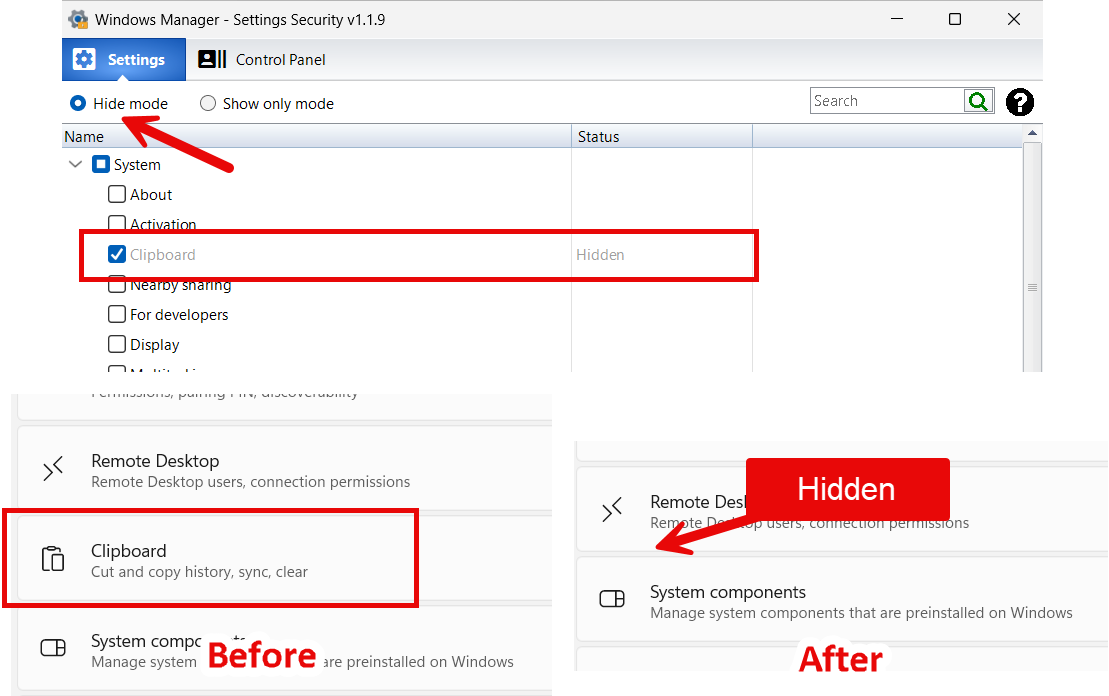
- Status: The policy already active in the system—Hidden if the page is hidden, Show only if it is on the allow list; blank if no policy affects the page.
- A checkbox on each row selects pages for the next apply action. Checking a box alone does not change the system until you click Hide or Show only.
Gray text marks pages that are currently hidden (in hide mode: items on the hide list; in show-only mode: items not on the allow list). Rows you check but have not applied yet stay in normal color.
4.2 Hide mode and Show only mode
Two radio buttons at the top choose the policy type. Only one mode is active at a time:
- Hide mode (default): Check pages to block, then click Hide. They disappear from Windows Settings. If every child page in a category is hidden, that category is hidden too.
- Show only mode: Check the pages users may see, then click Show only. Every other settings page is hidden.
Switching mode only affects the next policy you apply. The Status column always reflects what is already active in the registry and does not change when you switch radio buttons.
4.3 Toolbar buttons
- Hide / Show only: Write the checked pages to system policy. The button is enabled only when at least one item is checked and matches the selected mode.
- Restore: Clear all settings-page visibility policy and return to the system default (all pages visible). A confirmation dialog appears first. At least one item must be checked before the button is enabled.
- Execute: Open the selected settings page directly (see 4.4).
- Shortcut: Create a desktop shortcut for the selected item (see 4.4).
- Open Settings: Launch the Windows Settings home screen.
- Expand/Collapse: Expand or collapse all categories.
- Search box: Find pages by name; the match count appears on the right.
4.4 Open a page directly and desktop shortcuts
Besides hiding or restricting pages, the tool also lets administrators open favorite settings without digging through Windows Settings:
- Run the selected item: Click a specific settings page in the list (a child item, not a top-level category), then click Execute on the toolbar to open that page in Windows Settings. Double-clicking a row does the same. Useful for checking whether a page is hidden or making a quick change.
- Create a desktop shortcut: Select a settings page and click Shortcut. The program creates a
.lnkfile on the desktop named after the page. Handy for pages you open often—Display, Sound, Storage, and so on—without searching in the Settings app.
5. Settings tab: typical workflows
Hide several pages (good starting point)
- Make sure Hide mode is selected.
- Expand categories and check the pages to block. Use the search box to find Update, Privacy, and similar items quickly.
- Click Hide and wait for the success notification.
- After the list refreshes, hidden items show Hidden in Status and appear gray.
- Click Open Settings or press Win + I to confirm the pages are gone.
Allow only a few pages
- Switch to Show only mode.
- Check only the pages users may access—for example Display and Sound.
- Click Show only and confirm the prompt.
- When users open Windows Settings, only those pages appear.
Restore all defaults
- Check any item so Restore becomes enabled.
- Click Restore and choose Yes in the confirmation dialog.
- The tool removes the policy and all settings pages become visible again.
6. Control Panel tab
On the Control Panel tab, the program scans registered Control Panel applets, groups them by category, and shows icons and names.
6.1 Colors
The footer note says Red = Hidden. Hidden applets use a red background and white text. When you run a hidden item, the program uses the command line instead of control.exe /name, which does not work for hidden applets.
6.2 Common actions
- Refresh: Reload the applet list.
- Execute: Run the selected applet. Double-clicking a row works too.
- Hide / Unhide: Toggle hide state; the button reads Unhide for hidden items. Some items without ApplicationName cannot be hidden.
- Delete: Remove the item from the Control Panel namespace. A confirmation is required—use with care.
- Add: Quick-add tools such as Advanced User Accounts, Local Group Policy Editor, Registry Editor, System Configuration (msconfig), Services, and All Control Panel Items.
- Open Control Panel: Launch classic control.exe.
6.3 Disable entire Control Panel
The checkbox Disable entire Control Panel at the bottom blocks users from opening Control Panel. The list and related buttons are disabled while it is checked. Uncheck it to restore access. The change is saved to the current-user policy immediately with a completion notice.
Try it now
If you want to tighten Windows Settings and Control Panel access without reinstalling Windows, Settings Security is one of the most practical tools in the Security category. It works alongside Security Lock, Device Security, and Privacy Protector: this module controls which system entry points users can see and open, while the others handle traces, encryption, and access limits.
Download Windows Manager and open Settings Security under Security. For related maintenance tips, see the Move System Folders guide.
