After installing and removing many programs, Control Panel may still show items that will not uninstall, and Program Files may fill with empty folders. Microsoft Store apps also use a different uninstall path than classic desktop software. Built-in Apps & features can remove programs, but for multi-select uninstall, sort by size or date, view uninstall strings, clean invalid folders, export a list, and manage Windows apps in one place, it is often less convenient.
Smart Uninstaller in Windows Manager lists installed Win32 programs in 32-bit / 64-bit groups, supports single or batch uninstall, Details, Sort by estimated size and install date, Find invalid Program Files Directory to clean leftovers, and opens Windows Apps Uninstaller via Windows App. For registry leftovers, use Registry Cleaner; to free disk space, also try Duplicate Files Finder.
Below: how to open the module, the main layout, batch uninstall, Details, sort and search, invalid folders, HTML export, Windows apps, and precautions.
1. What can Smart Uninstaller do?
- Unified installed-program view. Groups such as Installed Programs (32-bit) and Installed Programs (64-bit) show name, install location, estimated size, install date, version, publisher, and more; the status bar shows totals and overall size.
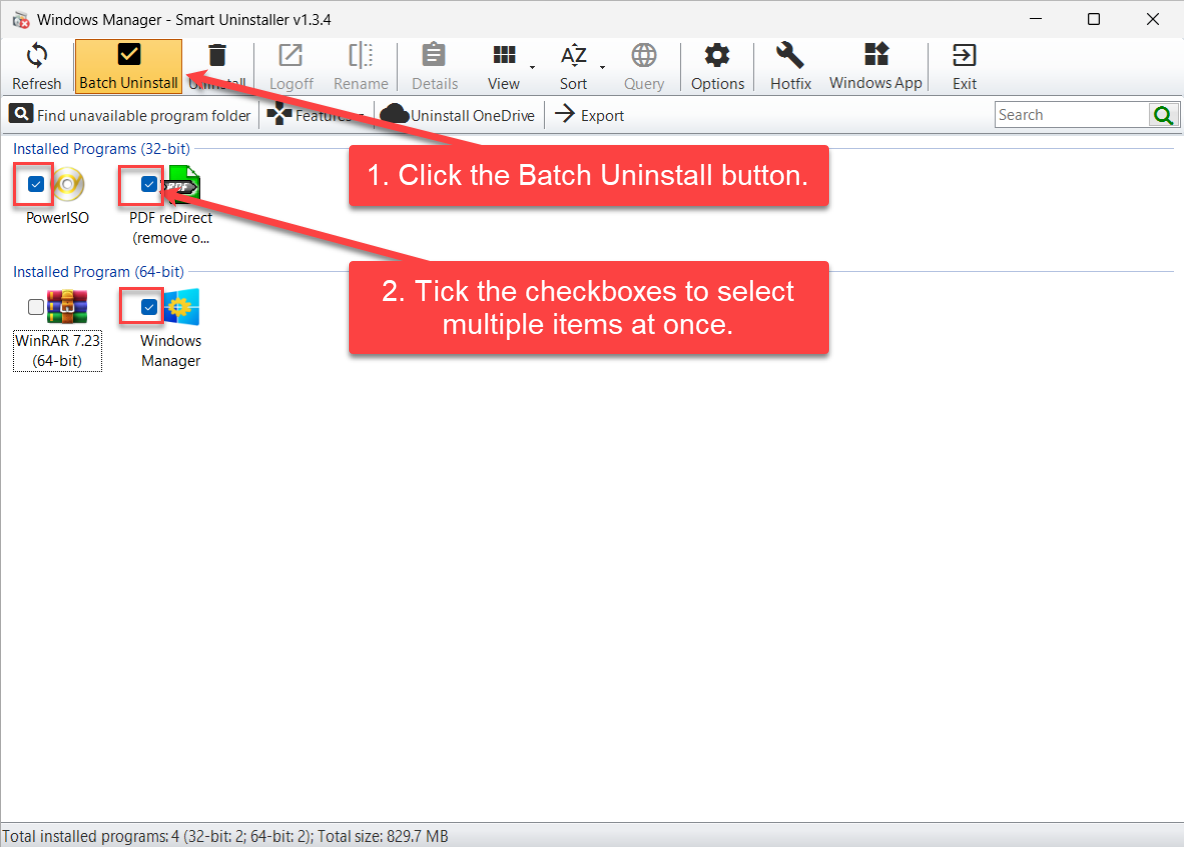
- Safe uninstall or batch uninstall. Uninstall one program, or turn on Batch Uninstall, check several items, and remove them in one pass.
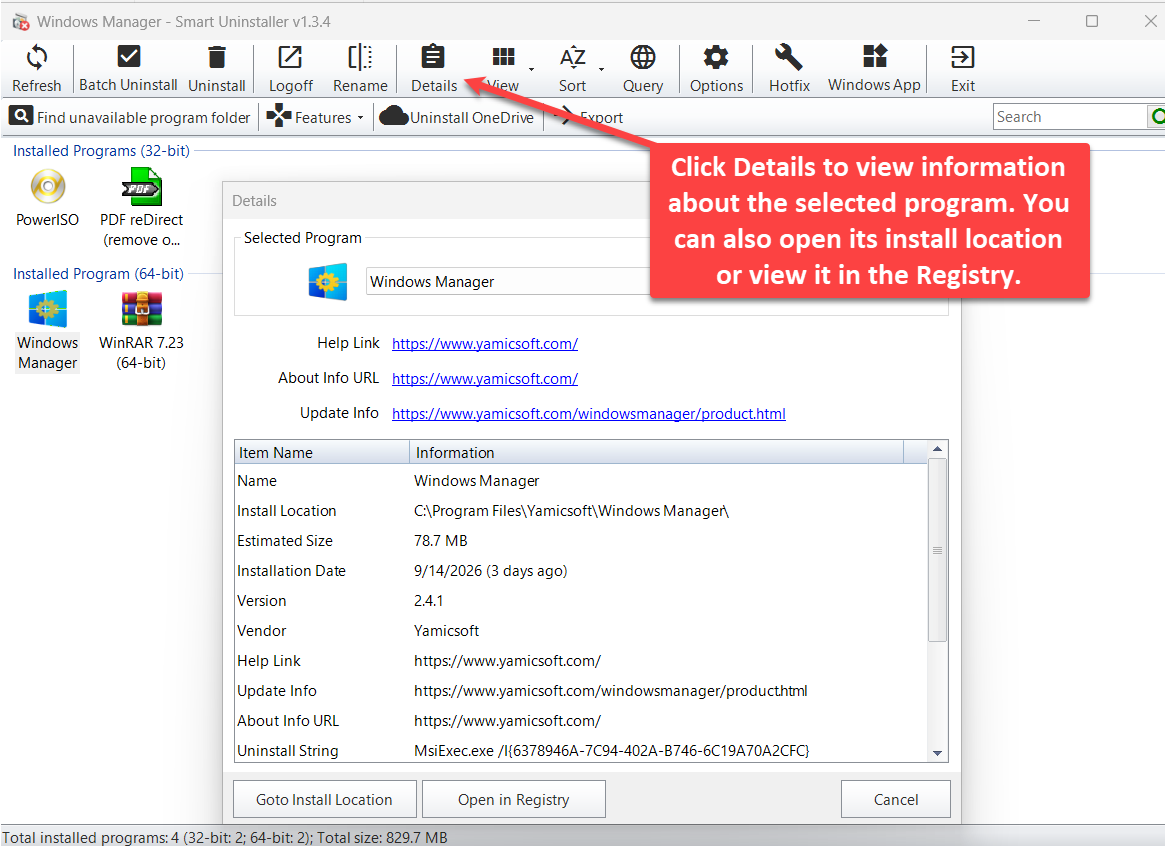
- Deeper inspection. Details shows install location, uninstall string, help/update links, plus Goto Install Location and Open in Registry.
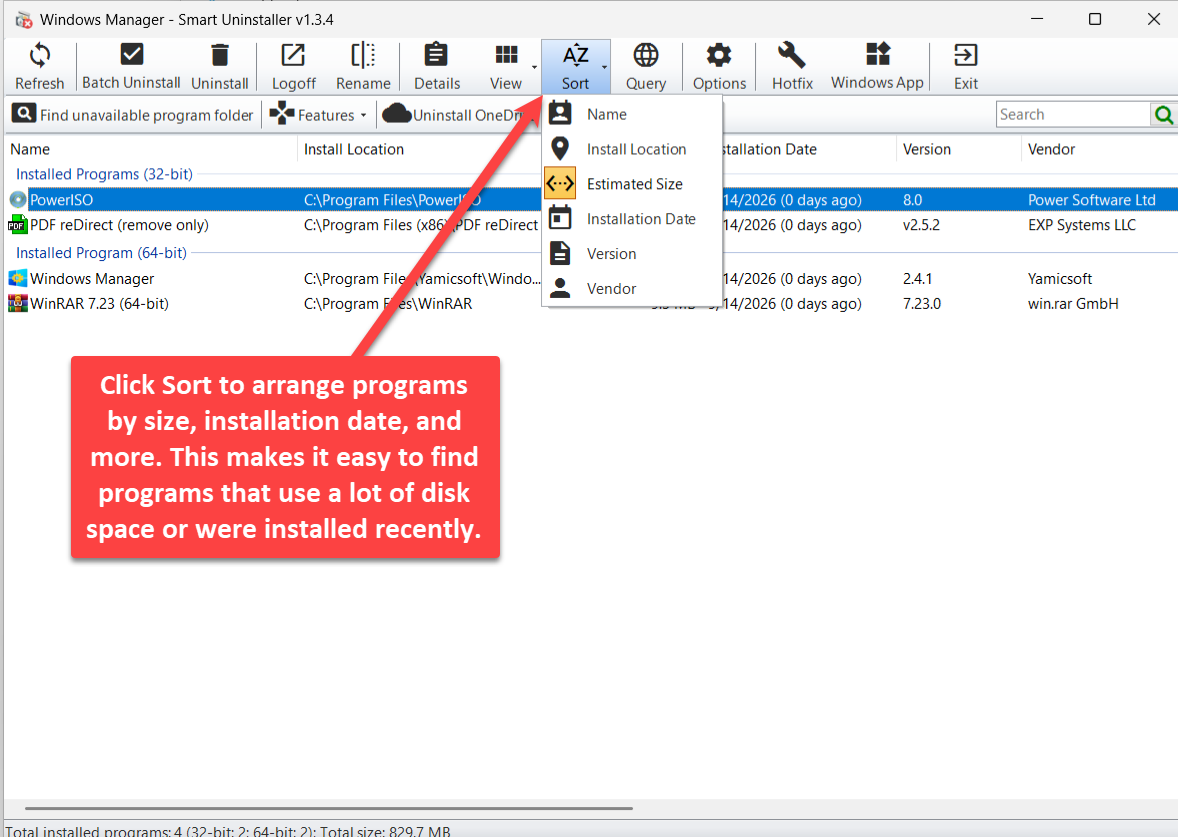
- Find large or recent installs fast. Sort by estimated size, install date, name, publisher, and more; the search box filters by keyword.
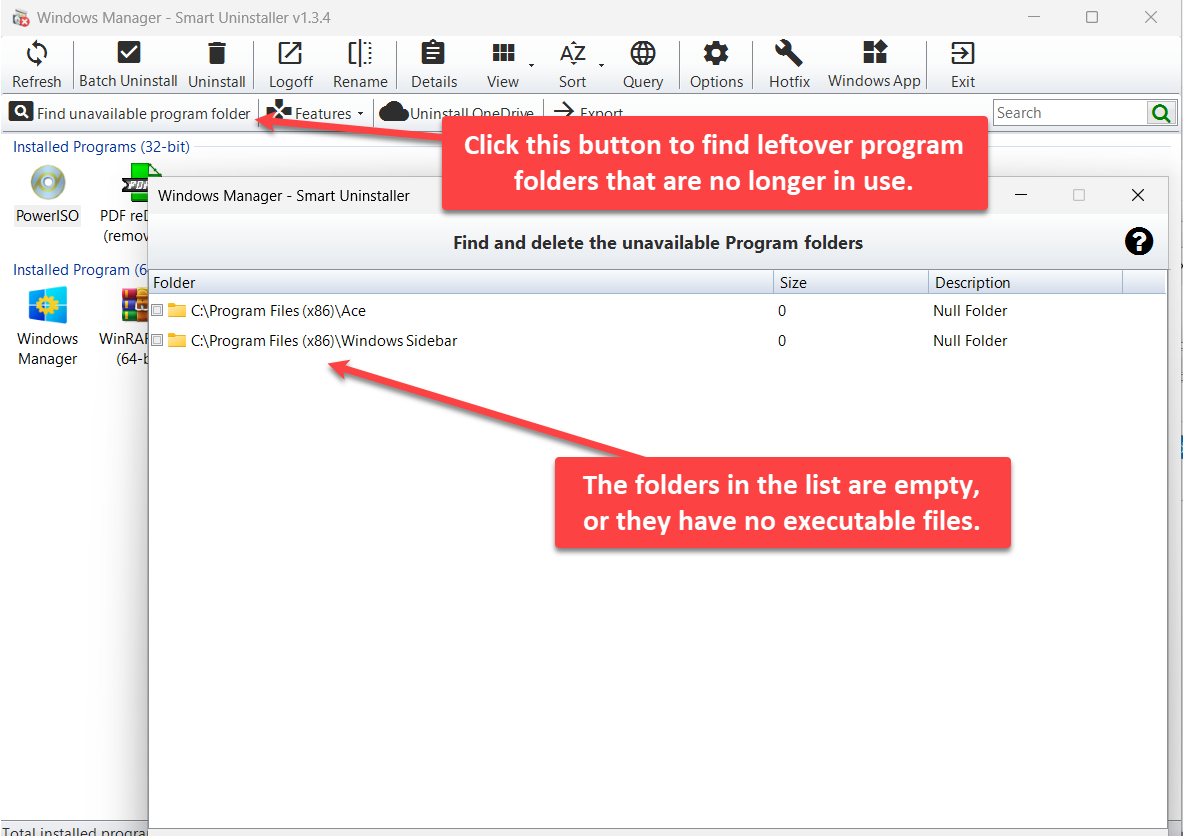
- Clean leftover folders. Find invalid Program Files Directory finds empty folders or directories with no executables so you can delete them after review.
- Export and Store apps. Export saves the list as HTML; Windows App opens Windows Apps Uninstaller to view, launch, or uninstall Microsoft Store apps.
It complements Registry Cleaner (registry leftovers) and Process Manager (running processes): Smart Uninstaller focuses on uninstalling installed software and maintaining the list.
2. How to open Smart Uninstaller
In the Windows Manager main window:
Cleaner → Smart Uninstaller
It opens as a separate window. Download a trial from the download page if needed. Run as administrator when uninstalling system components or protected programs.
3. Main window
The window is roughly divided into:
- Top toolbar: Refresh, Batch Uninstall, Uninstall, UnRegister, Rename, Details, View, Sort, Query, Options, Hot Fix, Windows App, Exit; the top-right ? opens a short tip and online help.
- Secondary toolbar: Find invalid Program Files Directory, Features (Optional Features / Windows features), Uninstall OneDrive, Export; search box on the right.
- Program list: installed programs by group; Large Icons / List / Details views.
- Status bar: total installed count (including 32-bit / 64-bit) and total size.
Columns include name, install location, estimated size, install date, version, publisher, and more (clearest in Details view).
4. Uninstall and batch uninstall
To remove one program: select it and click Uninstall to run that program’s own uninstaller (uninstall string).
To remove several at once:
- Click Batch Uninstall on the toolbar to enter multi-select mode.
- Check the programs you want to remove.
- Run uninstall; then use Refresh to update the list.
Double-check selections before batch operations so you do not remove tools you still need or system-related components.
5. Details
Select a program and click Details to see:
- Name, install location, estimated size, install date, version, publisher
- Help link, about URL, update info (when recorded in the registry)
- Uninstall String (the command used to uninstall—useful when something will not uninstall)
At the bottom of the dialog:
- Goto Install Location: open the install folder in File Explorer
- Open in Registry: jump to that program’s uninstall registry key
6. Sort, view, and search
Click Sort to arrange the list by fields such as:
- Name, install location, estimated size, install date, version, publisher
View switches among Large Icons, List, and Details. The Search box on the status bar filters by keyword. For unfamiliar names, use Query to search online.
7. Find invalid program folders
After uninstall, Program Files and similar locations may keep empty folders or directories with no executables. Click Find invalid Program Files Directory on the secondary toolbar to open Find and delete the unavailable Program folders:
- The list shows folder path, size, and notes (for example empty folder)
- Listed items are usually empty or contain no executable files
Confirm before deleting so you do not remove portable or green-software folders still in use.
8. Export the install list
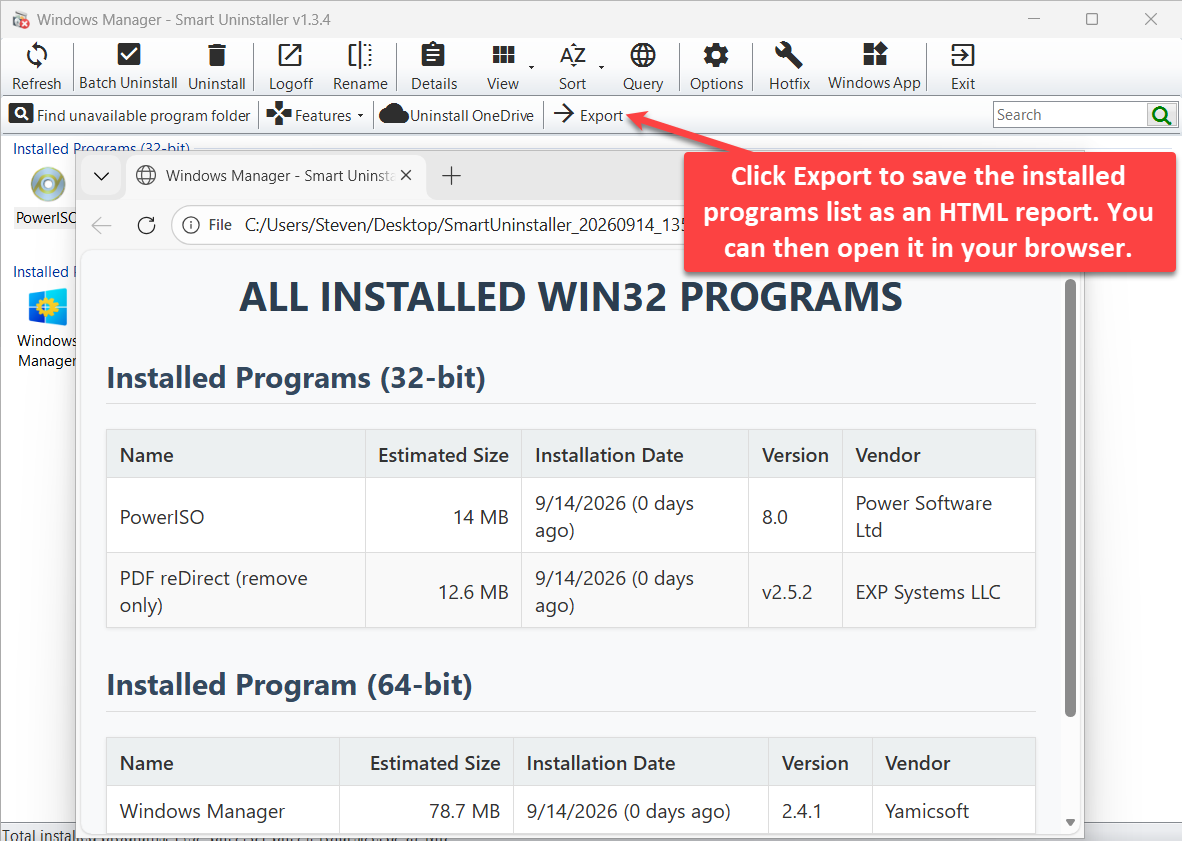
Click Export to save the current Win32 install list as an HTML report (title similar to “ALL INSTALLED WIN32 PROGRAMS”), grouped by 32-bit / 64-bit, with name, estimated size, install date, version, publisher, and more. After export you can open it in a browser for archiving, comparison, or sharing.
9. Windows Apps Uninstaller
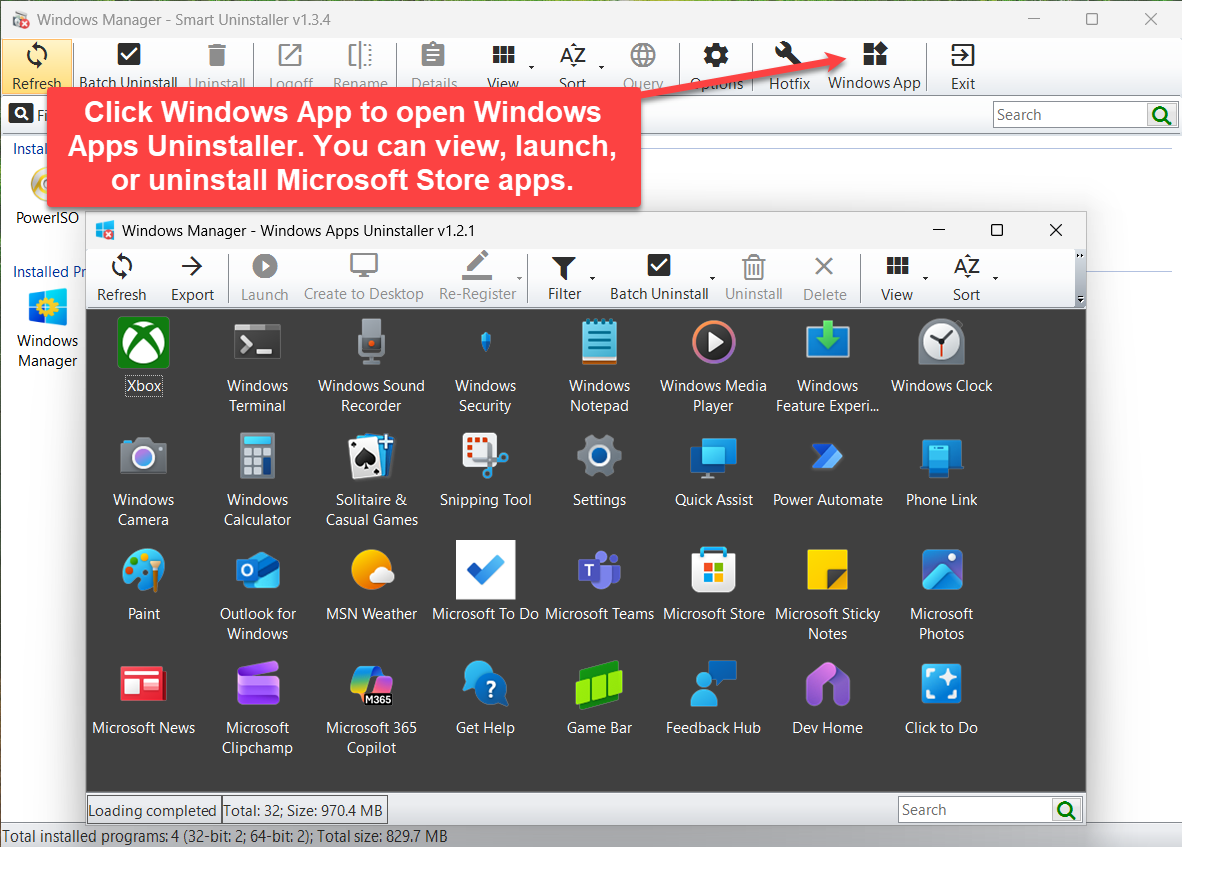
Desktop programs and Microsoft Store apps uninstall differently. Click Windows App on the toolbar to open Windows Apps Uninstaller:
- Browse installed Store apps in an icon grid
- Refresh, export, launch, create desktop shortcut, re-register, filter, batch uninstall, uninstall, delete, view, and sort
- Status bar shows app count and total size; search on the right
Useful for cleaning preinstalled apps, removing unused Store software, or adding desktop shortcuts for apps you keep.
10. Other common actions
- Refresh: reread the installed programs list.
- UnRegister: remove the entry from the list only (useful when uninstall fails and you only want it gone from the inventory); does not run the program’s uninstaller.
- Rename: change the display name in the list for easier recognition.
- Hot Fix: view and manage installed system hotfix-related items.
- Features: open Optional Features or Windows features system pages to manage optional components.
- Uninstall OneDrive: uninstall Microsoft OneDrive in one step (after confirmation).
- Options: adjust related program behavior settings.
11. Notes
- Do not casually uninstall system-related components. For unknown items, check Details or Query online first.
- UnRegister is not uninstall. UnRegister only removes the list entry; files and registry keys may remain. For a full cleanup, uninstall normally, then use Registry Cleaner if needed.
- Verify checks before batch uninstall. Impact can be large—narrow the list with Sort or Search first.
- Confirm invalid folders manually. Some portable apps have no standard uninstall entry—do not delete folders still in use.
- Manage Store apps separately from desktop programs. Use Windows Apps Uninstaller for Store apps; do not confuse them with the Win32 list.
- Administrator rights. Some uninstalls and system-folder cleanup need elevated privileges.
12. Typical workflow
- Cleaner → Smart Uninstaller; wait for the list to load.
- Use Sort (for example by estimated size) or Search to find large or recently installed programs you do not need.
- Open Details for suspicious items to confirm location and publisher, then Uninstall; use Batch Uninstall for multiple items.
- After uninstall, run Find invalid Program Files Directory and clean empty leftover folders.
- Click Export to archive the list; click Windows App to manage Store apps.
Try it now
Smart Uninstaller sits alongside Registry Cleaner, Duplicate Files Finder, and Process Manager in the Windows Manager cleanup toolkit. See the product page for more.
Get started: Download Windows Manager — open Cleaner → Smart Uninstaller, sort by size to find space hogs, then uninstall or batch-uninstall.
